Skip to content

AI VIDEO FOR MARKETING, SALES & AGENCIES

Turn one idea into your next video campaign.

Create presenter-led ads, website explainers and sales follow-ups from a brief. Review the script and shots, then render your video—with matching campaign copy in the same workspace.

Self-serve software. Your brief, your review, your publishing decision.

View pricing
THE IDEA, ON CAMERA01 / FILM
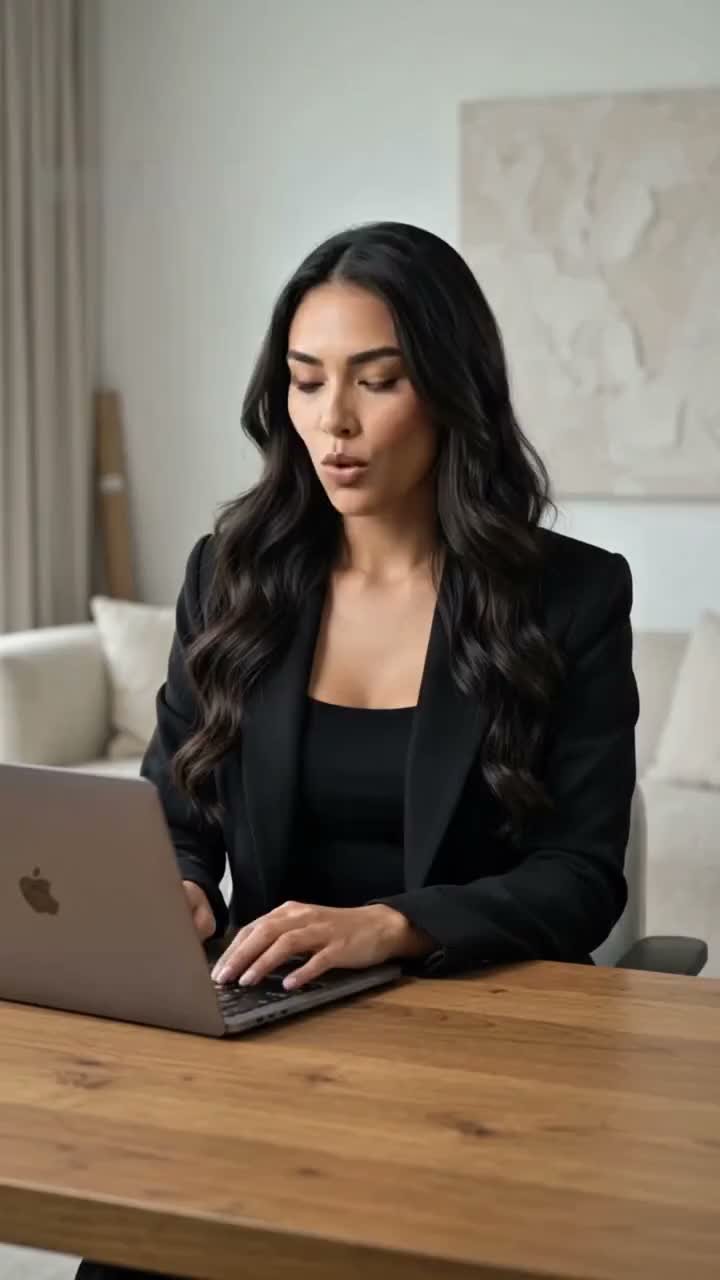
Production example · VideoFunker campaign filmAn existing edited marketing film, not a live product recording. Captions and finishing can require additional editing.
One starting brief.You review the message.You choose what goes live.

CHOOSE YOUR NEXT JOB

What are you making next?

Start with the job, not a blank timeline. Choose a use case to see what to make and what you bring.

FOR MARKETERS & AD CREATORS

Give your next offer a voice.

Turn an approved offer into a presenter-led ad. Develop a hook, explain the value and give the viewer a clear next step. Create another version when you want to explore a different angle.

EXAMPLE STARTING BRIEF

“Introduce our new offer to a skeptical buyer. Open with their problem, explain the benefit, then invite them to learn more.”

Make: Presenter video + script + supporting post and caption drafts

Review the creative, claims and platform policies. You upload it and launch the ad in your own ad account.

Explore AI video ads

FROM BRIEF TO VIDEO

Start with the brief. Stay in the director’s seat.

A campaign starts with written drafts. Video generation is a separate choice you review and confirm.

  1. Describe the job

    Set the objective, what you sell and who buys it. Add your website as context for the written campaign draft, or start with a script for a standalone video.

  2. Shape the message

    You review and edit the scripts and campaign copy. For multi-shot video, inspect the brief and shot plan before generation. Keep the facts and the offer true to your business.

  3. Choose. Review. Render.

    Choose your presenter and, where supported, voice, format and engine. Review the credit cost before you confirm the render. AI output may need another pass.

  4. Take it to your channel

    Review the result, download when your workflow and plan allow, then publish or post it yourself. Use your own website, social account, ad platform or sales tools.

Starting a campaign uses one campaign credit, and no video credits are spent until you confirm a render. See plans and credit allowances →

DIRECTION, NOT GUESSWORK

The message is yours. The production has a plan.

Direct a presenter video around a reviewed script, or build a multi-shot story with a shot plan. Keep the decisions that matter in your hands.

Montage and Cinematic Studio automatically assemble generated shots into one video. You review the result and may need regeneration or additional editing before publishing.

See the video and written outputs
Workflow illustration · not a live product screen
01 / YOUR BRIEF

Explain a new service to busy business owners. Start with their problem, introduce the offer, close with one clear next step.

02 / REVIEW THE SHOT PLAN
  1. Open on the buyer’s problem
  2. Explain the offer with a presenter
  3. Invite the viewer to learn more
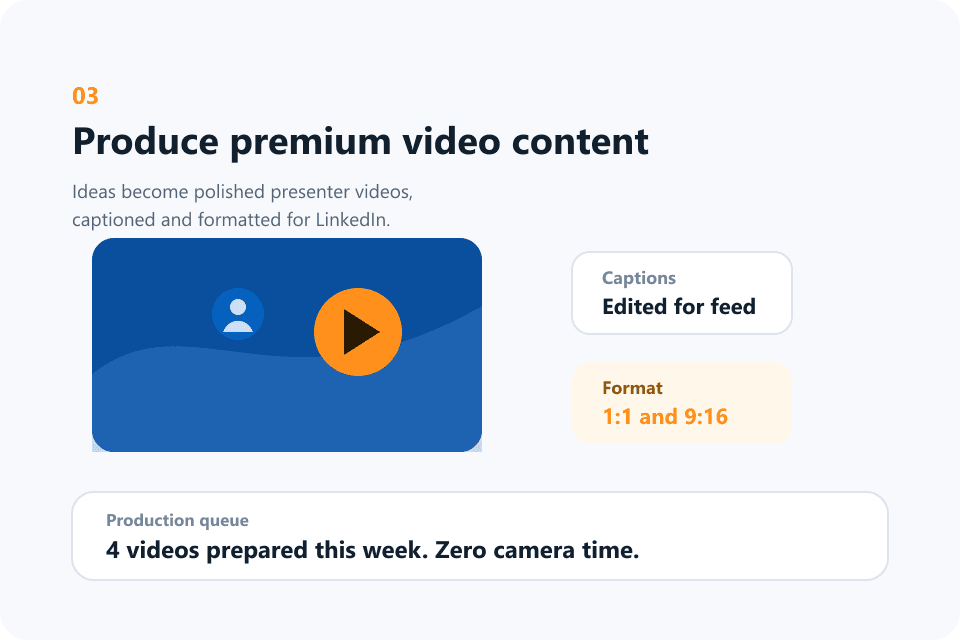
03 / CHOOSE FORMAT & REVIEW COSTThen confirm the render →

Generated shots → automatic assembly → your final review

VIDEO + CAMPAIGN COPY

A video is the centerpiece. The message goes with it.

Here, a campaign means video you choose to render plus supporting written assets—not an automatically launched ad campaign.

01

Presenter & multi-shot video

Generate MP4 video from a reviewed script or shot plan. Available engines, resolution and length depend on the workflow and plan.

02

Scripts, posts & captions

Draft the message around the video in the campaign workspace. Caption copy is a written asset; embedded captions depend on the video workflow.

03

Articles & outreach drafts

Carry the same brief into longer explanations and individual follow-ups. Review and edit the copy, then publish or send it through your own tools.

CHOOSE A FORMAT FOR THE JOB

Vertical

9:16 · Social feeds & mobile placements

Landscape

16:9 · Websites & wider screens

Square

1:1 · Supported presenter workflows

Format availability varies by engine. Multi-shot Montage and Cinematic Studio support vertical and landscape; square is available in supported presenter workflows. Choose the format before rendering.

Compare plans and download access

EXAMPLES, NOT OUTCOME PROMISES

Real creative. Clearly labeled.

See the production example at the top of this page, and how VideoFunker tools have been used in advertising.

Presenter in the VideoFunker campaign production examplePRODUCTION EXAMPLEOne idea, on camera.Watch the VideoFunker film above ↑

Production example · paid advertising

FindUrLawyer video creative

AI-assisted FindUrLawyer videos ran in Facebook ads. The traced Beta production used VideoFunker’s admin workflow with additional editing for timing, captions, music and an end card.

This is evidence of advertising use, not a self-serve product recording or a promise of campaign performance.

Explore the ad-creative workflow

A FEW PRACTICAL ANSWERS

Before you start.

The creative decisions stay with you. Here is how the software fits into your workflow.

View pricing →
Is VideoFunker software or a video production service?

VideoFunker is self-serve AI video software. You provide the brief, choose the presenter and available options, review the message and confirm generation. You also decide what to publish. Agencies can use the software for client work while keeping creative direction, client approvals and distribution in their own process.

What does a “video campaign” include?

A campaign combines a written content workspace with the videos you choose to generate. Written drafts include scripts, posts, caption text, articles and outreach copy. Creating the written campaign does not automatically render a video, launch an ad, publish a post or produce a finished image carousel.

Can I change the script or shot plan before rendering?

Yes. Review and edit campaign scripts before generation. Montage and Cinematic Studio let you inspect the brief or shot plan before confirming a render. Review the generated result too: AI output can need regeneration, and exact product footage, custom graphics, captions or finishing may require additional editing.

Can I try it, and when can I download?

Free preview available. Preview use is for evaluation; download access depends on the workflow and plan, including eligible purchased-video or trial entitlements. Check pricing for the current allowances and terms, and review the credit cost in the app before you confirm a render.

View pricing and allowances →
Can I use the videos in ads, on my website or for clients?

Paid finished videos may be used for your business and client work under the applicable terms. You are responsible for claims, platform policies and rights to uploaded materials. Stock presenter and voice rights remain subject to provider terms. You download, host, embed and publish through your own channels.

Read the usage terms →
Do I need to film myself?

No filming day is required for a stock or photo-presenter workflow. Choose an available presenter, or use a photo and voice you have the rights and consent to use. Presenter choices and voice controls depend on the workflow. A footage-trained digital twin is not generally available to every account.

Which formats and captions can I create?

Vertical and landscape outputs are available in supported presenter and multi-shot workflows; square is available in supported presenter workflows. Resolution, length and embedded captions depend on the engine and plan. Cinematic Studio does not include embedded captions by default. Written caption drafts are separate from subtitles in the video.

How long does a render take?

Render time varies with the engine, queue, video length and provider availability. There is no fixed delivery-time promise. Leave time to review the result and, where necessary, regenerate or edit it. Starting a written campaign uses a campaign credit; video generation is a separate action you confirm.

Ideas for your next video

Practical guides to scripts, production and publishing.

distribution

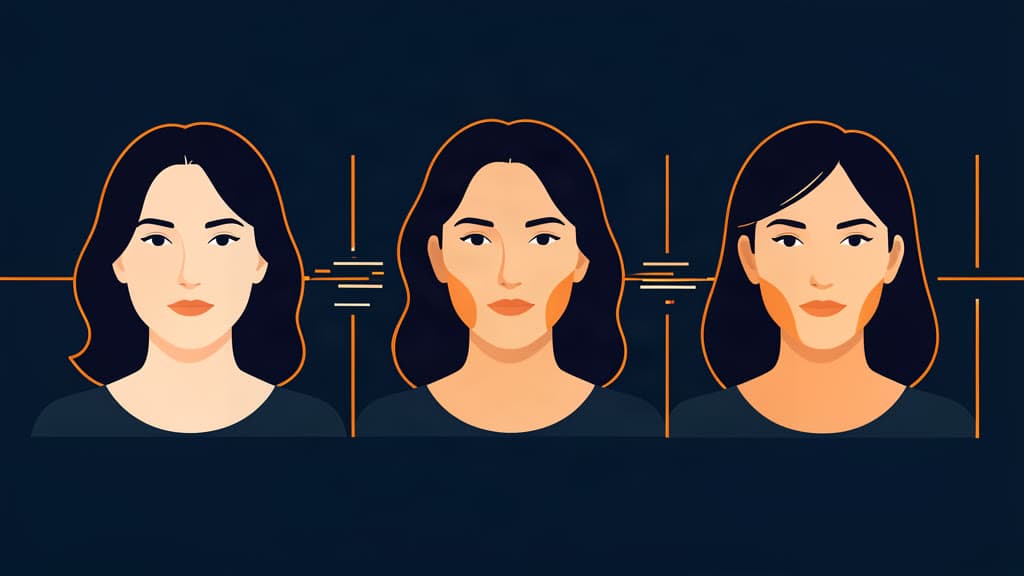
How the LinkedIn feed ranks video in 2026

LinkedIn does not rank video by views. It runs a short dwell test, decides who you are for, and then mostly stops. Understanding the sequence changes what you post.

· 5 min read

YOUR NEXT CAMPAIGN STARTS HERE

Give your next idea a video.

Bring the offer. Review the story. Create the video you want to put out into the world.

Start creatingView pricing →

Free preview available. Download access depends on the workflow and plan.